How to convert an Excel workbook to PDF: a step-by-step guide
Posodobljeno 2. oktober 2026
Ta vodnik še ni na voljo v slovenščini, zato je prikazan v angleščini. Samo orodje deluje v slovenščini.
A price list, a timesheet, a budget to send to someone without Excel: Excel to PDF turns an .xlsx workbook into a PDF, every visible sheet paged where Excel would cut it - its paper, margins, scaling, page breaks, print titles, header and footer. Cells keep their fills, borders and number formats. You don't need Excel, and the workbook never leaves your browser.
Preizkusite brezplačno, brez registracije: vaše datoteke nikoli ne zapustijo vaše naprave.
Na kratko
- Drop your .xlsx files on the page, or press Add files.
- Each workbook is converted as it arrives - its pages appear in the middle.
- Fit the width to the page or show the gridlines if you like.
- Press Save as PDF: the PDF is saved to your device straight away.
Add the workbooks
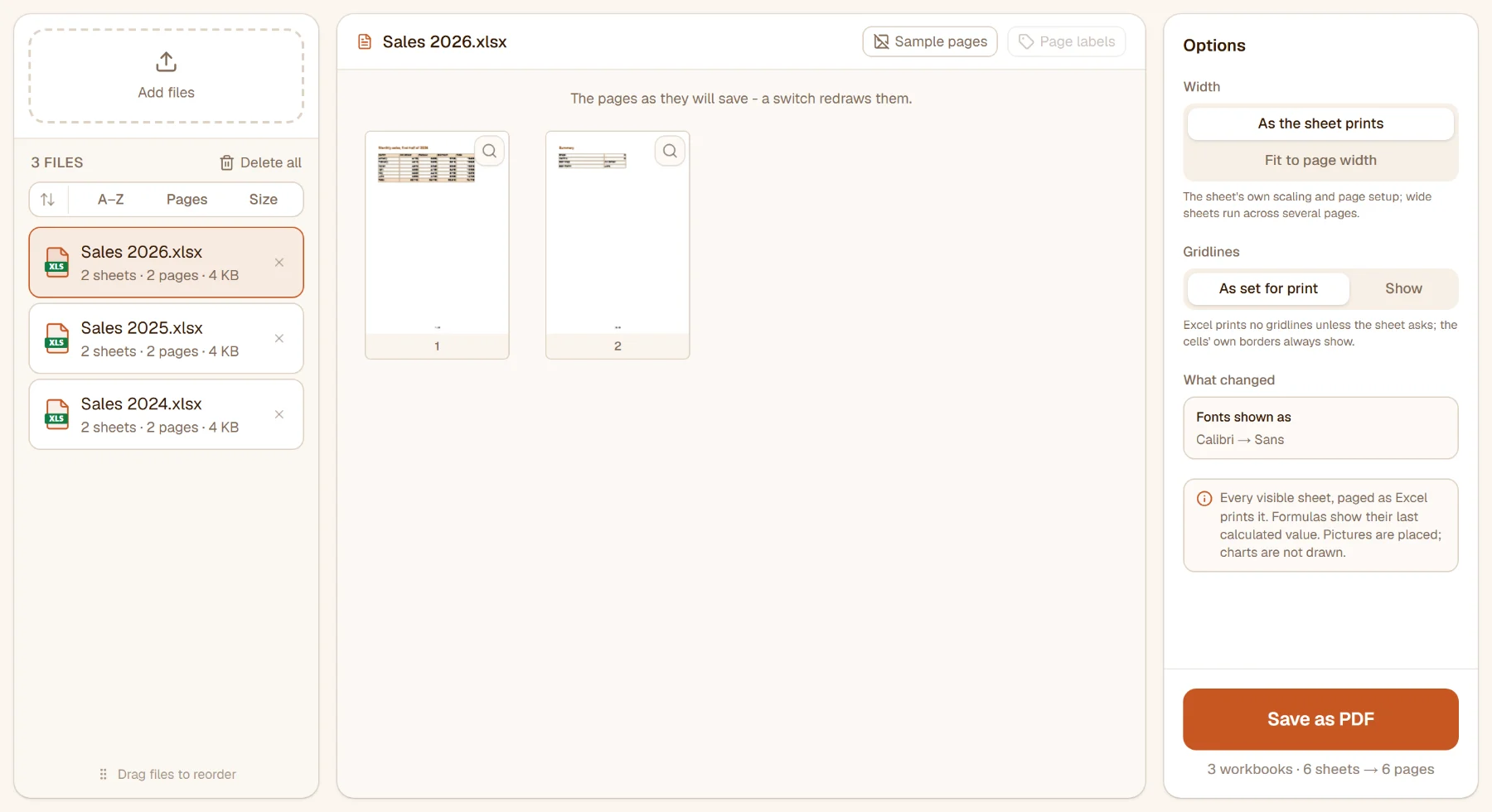
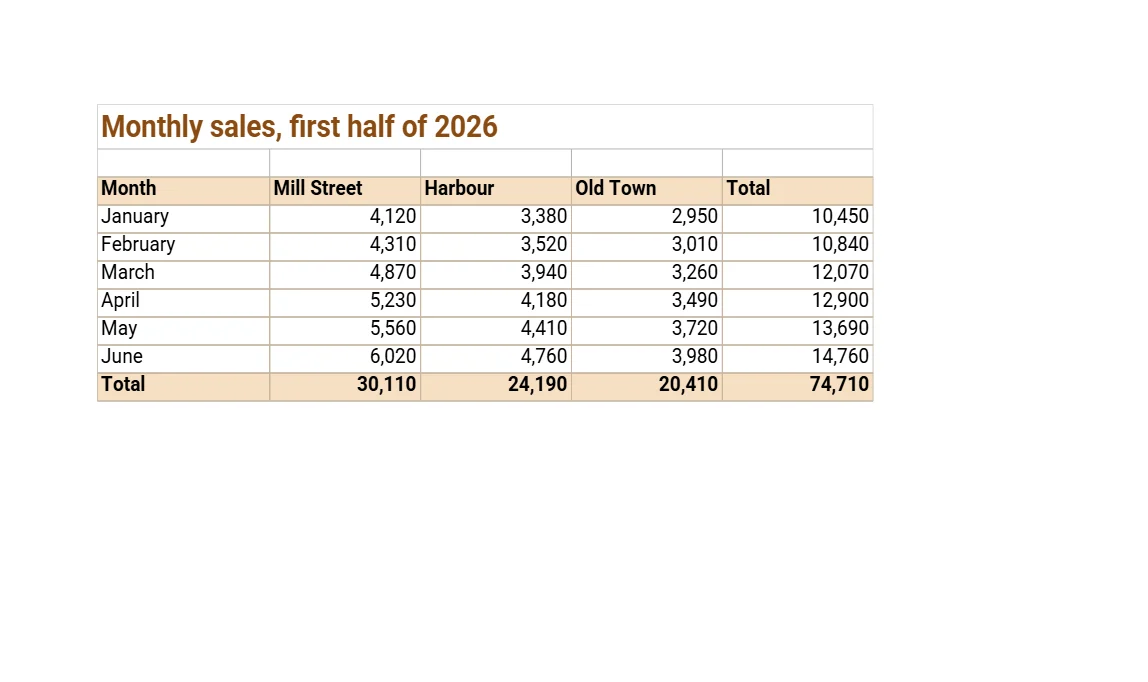
Drop the .xlsx files anywhere on the page, or press Add files. Each is converted the moment it arrives; the list says how many sheets and pages it gave, and the middle shows the pages as they will save. The rail lists what was changed on the way - which fonts were shown as which, and what was left out.
Width and gridlines
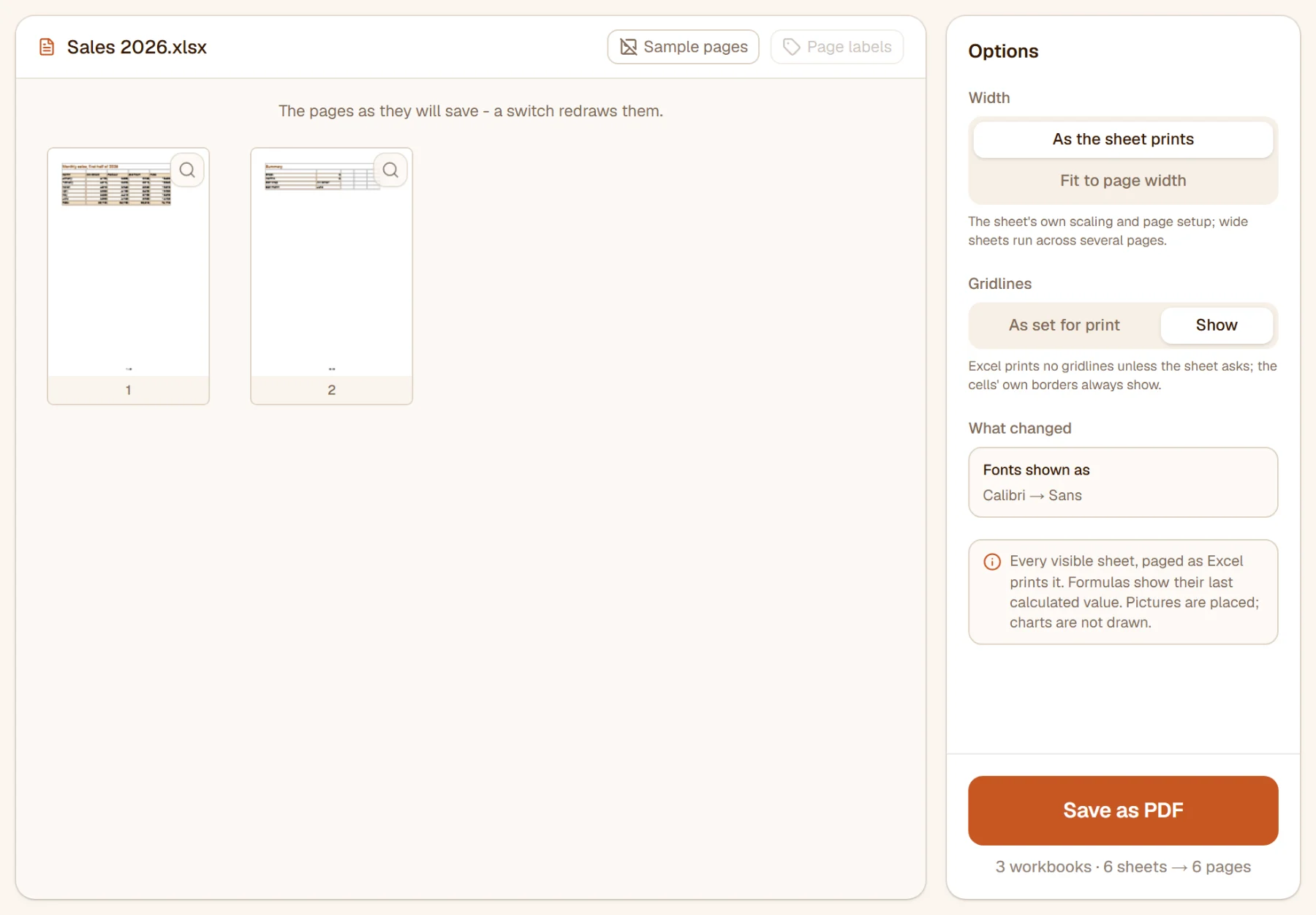
- Width - As the sheet prints keeps the sheet's own scaling and page setup, so a wide sheet runs across several pages; Fit to page width puts every column on one page across, scaled down as needed.
- Gridlines - As set for print follows the sheet (Excel prints no gridlines unless the sheet asks); Show draws them on every page. The cells' own borders always show.
What comes along, and what doesn't
Every visible sheet comes along, one after the other; hidden sheets, rows and columns are skipped, as when printing. A formula shows the value Excel last calculated for it. Pictures are placed where they sit; charts and shapes are left out and counted in the rail. The old binary .xls needs Excel to be saved as .xlsx first.
Save
Press Save as PDF. The line under the button counts the workbooks, sheets and pages. One PDF per workbook is saved to your device at once - several together as a ZIP.
Limits
Without an account, and with a free one, you can convert two workbooks in a run, each up to 15 MB. With Pro there is no limit on the number or the size.
What next?
- Several sheets or files into one PDF? Merge PDF.
- Page numbers on the result? Page Numbers.
- Tables of a PDF back into a workbook? PDF to Excel.
Ste pripravljeni na preizkus?
Preizkusite brezplačno, brez registracije: vaše datoteke nikoli ne zapustijo vaše naprave.
Več vodnikov
- How to merge PDF files: a step-by-step guideCombine PDFs, images and Office files into one PDF in your browser: order the files, add separator pages, a contents page and bookmarks, interleave two-sided scans.v angleščini
- How to split a PDF into several files: a step-by-step guideCut a PDF into separate files in your browser: at the pages you choose, every N pages, into equal parts, one file per page, or into parts small enough to e-mail.v angleščini
- How to rotate PDF pages: a step-by-step guideTurn the pages of a PDF in your browser: one page or many, by quarter turns or any angle, in several files at once - and save it so it stays turned.v angleščini
- How to mirror PDF pages: a step-by-step guideFlip PDF pages horizontally or vertically in your browser - a page scanned from the back of a transparency, a print that needs mirror-writing - for one page, some or every file at once.v angleščini
- How to straighten a crooked PDF scan: a step-by-step guideLevel a scanned PDF whose pages went in at a slant, in your browser: every page's tilt measured on its own, corrected in place, with a hand-set angle where you want one.v angleščini
- How to auto-rotate PDF pages upright: a step-by-step guideFind the sideways and upside-down pages of a scanned PDF and turn each upright, in your browser - detected page by page, checked on the thumbnails, saved without loss.v angleščini
- How to delete pages from a PDF: a step-by-step guideRemove pages from a PDF in your browser: mark them on the thumbnails, by number or with quick-selects such as every even page - in one file or many, nothing uploaded.v angleščini
- How to change the page size of a PDF: a step-by-step guidePut every page of a PDF on A4, Letter, A3, A5 or a custom size in your browser, or shrink the content on the page it has - vector text stays sharp, links and form fields stay in place.v angleščini
- How to reorder PDF pages: a step-by-step guideRearrange the pages of a PDF in your browser: drag the thumbnails, move a selection to the front, the back or in front of any page, or reverse the order - nothing uploaded.v angleščini
- How to reverse the page order of a PDF: a step-by-step guideTurn the page order of a PDF back to front in your browser - a scan fed in last page first, or only a chosen run of pages - in one file or many at once.v angleščini
- How to extract pages from a PDF: a step-by-step guideTake the pages you need out of one or more PDFs in your browser: pick them on the thumbnails or by number, save them as one PDF, one per file, per range or per page.v angleščini
- How to crop a PDF: trim the margins step by stepTrim the white margins of PDF pages in your browser, or cut them to a frame you draw - one frame for every page, odd and even pages apart, or each page its own.v angleščini
- How to print several PDF pages on one sheet, or make a booklet: a step-by-step guideLay 2, 4, 6, 8, 9 or 16 PDF pages out on one sheet, or arrange a PDF as a folded booklet, in your browser - the sheets previewed exactly as they will be saved, text kept sharp.v angleščini
- How to edit a PDF: rewrite its text, add text, pictures, tables and pages - a step-by-step guideEdit a PDF in your browser like a word processor: rewrite the document's own paragraphs, format a selection, add text boxes, pictures, shapes, tables, links, comments and form fields, add and delete pages, find and replace. Nothing is uploaded.v angleščini
- How to sign a PDF online: a step-by-step guideSign a PDF in your browser: draw, type or upload your signature, place it on the page, add a second signer, put it on every page - nothing is uploaded.v angleščini
- How to fill in a PDF form: a step-by-step guideType into a PDF form's fields right on the page in your browser - text, check boxes, lists, choices - then save it filled in, or locked so nobody can change it.v angleščini
- How to add a watermark to a PDF: a step-by-step guideStamp a text or logo watermark on PDF pages in your browser: diagonal or in a corner, repeated over the page, with the size and opacity you choose - nothing uploaded.v angleščini
- How to add page numbers to a PDF: a step-by-step guideNumber the pages of a PDF in your browser: choose the pages, the position and the margin, skip the cover, start from any number, write "Page 3 of 12" in your own style.v angleščini
- How to change or remove PDF metadata: a step-by-step guideEdit a PDF's title, author, subject, keywords, application and creation date in your browser - or clear them all before the file leaves the house - written so every viewer shows the same.v angleščini
- How to flatten a PDF: a step-by-step guideBurn form fields, comments, highlights and stamps into the page of a PDF in your browser - or take them off - so the file looks the same in every viewer and can no longer be changed.v angleščini
- How to compare two PDF versions: a step-by-step guideSee what changed between two versions of a PDF in your browser - the words removed, added and replaced, marked on the two pages side by side, and a report to keep. Nothing is uploaded.v angleščini
- How to make a PDF smaller: compress it step by stepShrink a PDF in your browser: pick a compression level, see the size before and after, compress several files in one go - text stays sharp, nothing is uploaded.v angleščini
- How to make a PDF open fast on the web (Fast Web View): a step-by-step guideLinearize a PDF in your browser so a reader shows its first page while the rest is still downloading - for a PDF served from a website or a link. The pages stay exactly as they are.v angleščini
- How to remove hidden data from a PDF: a step-by-step guideTake out what a PDF carries beside its pages - metadata, attached files, embedded video, scripts, comments, thumbnails - in your browser, before the document leaves the house. The pages stay as they are.v angleščini
- How to repair a damaged PDF that won't open: a step-by-step guideFix a PDF that a reader refuses to open - a download that was cut off, a file with a broken table of contents - in your browser. Each file is checked as it arrives, and you see what was wrong and what came back.v angleščini
- How to see what is inside a PDF: a step-by-step guideInspect a PDF in your browser: its pages and sizes, what makes it big, its images and their resolution, its fonts, the hidden data it carries - and which tool would help next. Nothing is uploaded.v angleščini
- How to remove blank pages from a PDF: a step-by-step guideFind and delete the empty pages a duplex scan leaves behind, in your browser: every page measured, the blank ones marked for you to check, a scanner's dark edge ignored.v angleščini
- How to remove duplicate pages from a PDF: a step-by-step guideFind the pages that repeat an earlier one - a sheet fed through the scanner twice, an attachment merged in again - and delete them in your browser, after checking every mark on the thumbnails.v angleščini
- How to redact a PDF: remove names and numbers for goodBlack out names, e-mails, phone and account numbers in a PDF in your browser - the content is deleted from the file, not just covered. Search, patterns or drag.v angleščini
- How to password-protect a PDF: a step-by-step guidePut a password on a PDF in your browser with AES-256 encryption, and choose whether readers may print, edit or copy - the file and the password never leave your device.v angleščini
- How to remove a password from a PDF: a step-by-step guideUnlock a PDF in your browser: take the password off a file you know the password of, or lift restrictions that block printing and copying - nothing is uploaded.v angleščini
- How to check a PDF's digital signature: a step-by-step guideCheck in your browser whether a PDF's digital signatures are intact, who signed it and when, whether the provider is on the EU trusted lists - and get the version that was signed if the file changed since. Nothing is uploaded.v angleščini
- How to digitally sign a PDF with a certificate: a step-by-step guideSign a PDF with your certificate (.p12 / .pfx) in your browser, or with one made on the spot - a real digital signature that proves the document hasn't changed since. Free, nothing uploaded.v angleščini
- How to turn images into a PDF: a step-by-step guideMake a PDF from JPG, PNG and other photos in your browser: put them in order, pick the page size and margin, one image per page or several on a sheet.v angleščini
- How to convert PDF pages to JPG or PNG images: a step-by-step guideSave the pages of a PDF as JPG, PNG or WebP images in your browser: choose the pages, the format, the quality and the resolution - nothing is uploaded.v angleščini
- How to extract images from a PDF: a step-by-step guideSave every picture embedded in a PDF as a JPG or PNG file, in your browser - a JPEG comes out as the very JPEG in the file, with no second loss of quality; icons and rules can be left out.v angleščini
- How to convert a PDF to grayscale: a step-by-step guideTurn a colour PDF black-and-white in your browser for printing or archiving - text stays sharp and selectable, pictures and gradients turn grey, nothing is uploaded.v angleščini
- How to make a scanned PDF searchable with OCR: a step-by-step guideRecognise the text of a scanned PDF in your browser and add a searchable, selectable text layer - the language detected for you, the scan itself untouched, nothing uploaded.v angleščini
- How to extract the text of a PDF to a .txt file: a step-by-step guideSave the text of a PDF as a plain .txt file in your browser - as paragraphs that reflow, or line by line as on the page - for some pages or all, with the preview on screen before you save.v angleščini
- How to convert a PDF to Word: a step-by-step guideTurn a PDF into an editable Word document in your browser: keep the page as it looks, or get the text as paragraphs or lines - choose the pages, nothing is uploaded.v angleščini
- How to convert the tables of a PDF to Excel: a step-by-step guideTurn the tables in a PDF into an Excel workbook (.xlsx) in your browser - numbers as real numbers that add up, the tables checked on screen before you save.v angleščini
- How to convert a PDF to PowerPoint: a step-by-step guideTurn every page of a PDF into a PowerPoint slide (.pptx) in your browser - the slide looks like the page, and every word stays editable text in a box of its own.v angleščini
- How to convert Word to PDF: a step-by-step guideTurn Word documents (.docx) into PDFs in your browser - text, lists, tables, pictures, headers and footers kept, several documents at once, nothing uploaded.v angleščini
- How to convert a PowerPoint presentation to PDF: a step-by-step guideTurn a PowerPoint deck (.pptx) into a PDF in your browser, one page per slide at the slide's size - no PowerPoint needed, nothing uploaded.v angleščini